
File Scanning and File Status
To keep Superhive safe for everyone, every file you upload is automatically scanned for malware. This article explains what each file status means for you and your customers, and what to do if one of your files is held for review.
In this Article:
- What the File Statuses Mean
- What Your Customers See
- Where Held Files Aren't Available
- File Scanning and Your First Product
- If a File Is Under Review
- Tips to Avoid Holds
What the File Statuses Mean
Scanning starts as soon as your upload finishes. You'll see a status next to each file in your product's files section:
- Scanning…: the scan is in progress. Customers can still download the file from their download page while it's being scanned.
- Scanned (green shield): the file passed. Nothing more to do.
- Not fully scanned: the file passed, but it was too large or complex for a full malware scan, so we checked it as far as we could. It's treated like a file that passed, so there's nothing more to do.
- Under review: the file has been held, and our team will review it. Nobody can download it until it's cleared. A file that can't be scanned for any reason is also held for review.
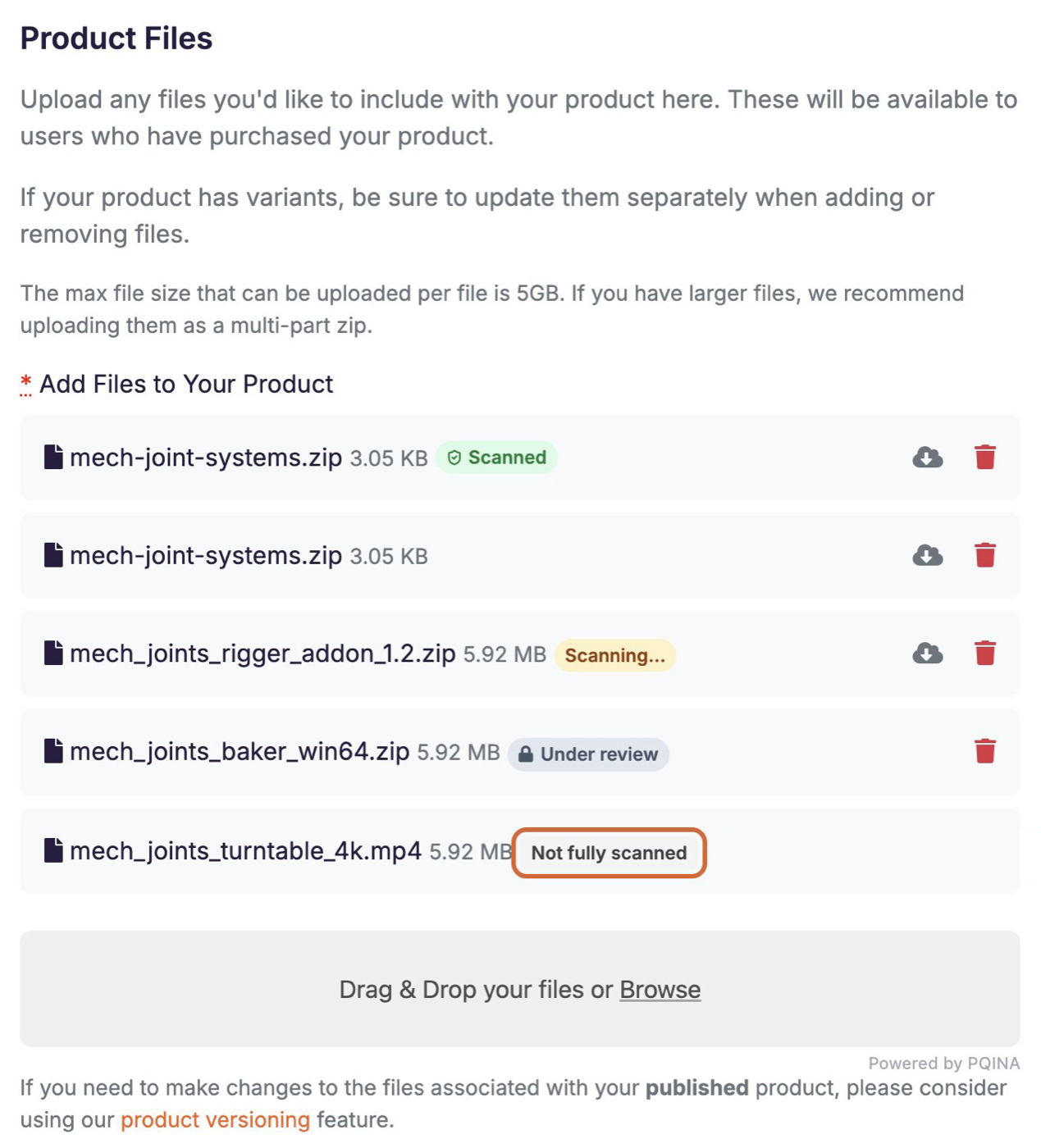
Scanning applies to new uploads everywhere you add product files, including new versions created with Product Versioning. It applies to every creator, including creators with Trusted Creator Status.
Files in an asset library don't show these badges. Instead, an asset whose file is still being checked shows Malware scan in progress: delivered once it passes, and one that's held shows Held by the malware scan, so it isn't delivered.
What Your Customers See
Your customers see the same status next to each file on their download (receipt) page:
- Scanned: shown with a green shield; downloads normally.
- Not fully scanned: downloads normally.
- Scanning…: still downloadable.
- Under review: Download shows as Unavailable until our team clears the file.
If a customer asks why a download is unavailable, you can point them to How to Find and Download Your Purchases.
Where Held Files Aren't Available
A new file that hasn't passed scanning isn't delivered anywhere else on Superhive either. This includes files that are still Scanning…: they can be downloaded from the receipt page, but nowhere else until they pass. Until then, a file won't be served through:
- the Blender extension feed (customers who connected Superhive as a remote repository keep getting the previous version in Blender until the new file passes; see Extensions Support)
- asset libraries (see Uploading and selling Blender assets on Superhive)
- attachment links in Superhive Inbox messages
File Scanning and Your First Product
If you haven't had a product approved yet, we can't approve your product until every one of its files has passed (Scanned or Not fully scanned). Files that are still Scanning… or are Under review will hold up approval. See Checking Your Product Status for other things that can hold up approval, and One Product at a Time for New Creators for how the review works for new creators.
If a File Is Under Review
- Don't upload the same file again. Copies with the same contents stay held too, so re-uploading, or deleting and re-adding the file, won't clear it.
- Wait for our team. We review every held file. We don't send a message when a file is held or cleared: if it's cleared, its status changes to Scanned and it becomes downloadable again.
- If we reject a product file, we'll send you a message in your Inbox explaining why. Upload a corrected file, or, if you think the scan got it wrong, reply to that message and explain what the file does.
Tips to Avoid Holds
- Upload only what your customers need: your .blend files, textures, documentation and add-on source.
- Compress your product as a standard Zip or 7z archive, as described in How to Upload Your Products.
- Build your archives on a clean machine, and only include files you created or can vouch for.
- Keep each file under the 5GB limit.