
Extensions Support
If you are listing an add-on or theme on Superhive, ensure that your product is extension ready. Follow these instructions from Blender: https://docs.blender.org/manual/en/latest/advanced/extensions/getting_started.html
Superhive provides automatic detection of extensions for products in the Add-ons and Themes categories such that all a creator needs to do is upload an extension ready file for their product and then our system will do the rest.
Automatic scanning happens only the first time a product is submitted for review. After that subsequent scans can be triggered manually by the creator on the product edit form. Here is an example of what the results look like:

Any add-on/theme product that does not include a valid extension will be presented as a Legacy Extension, which means it must be installed manually into Blender (the same way as it's been done for years).
Products that do include a valid extension file will be shown as either Extension Type: Add-on or Extension Type: Theme, as defined in the blender_manifest.toml file that is to be bundled with the uploaded file.
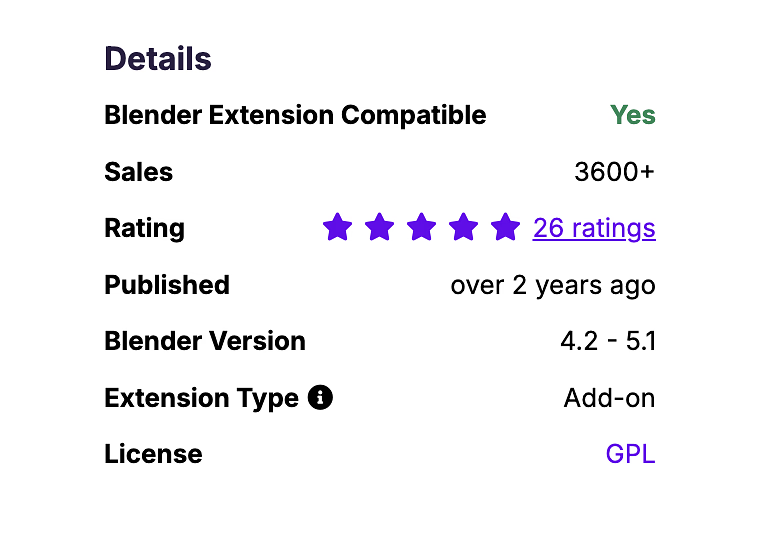
Products that are Extension-ready can be installed remotely by connecting to Superhive as a remote repository. No manual downloading and installing is necessary, though the traditional installation method still works. But the easiest way for customers to install extensions purchased on Superhive is to drag and drop the product files into Blender.
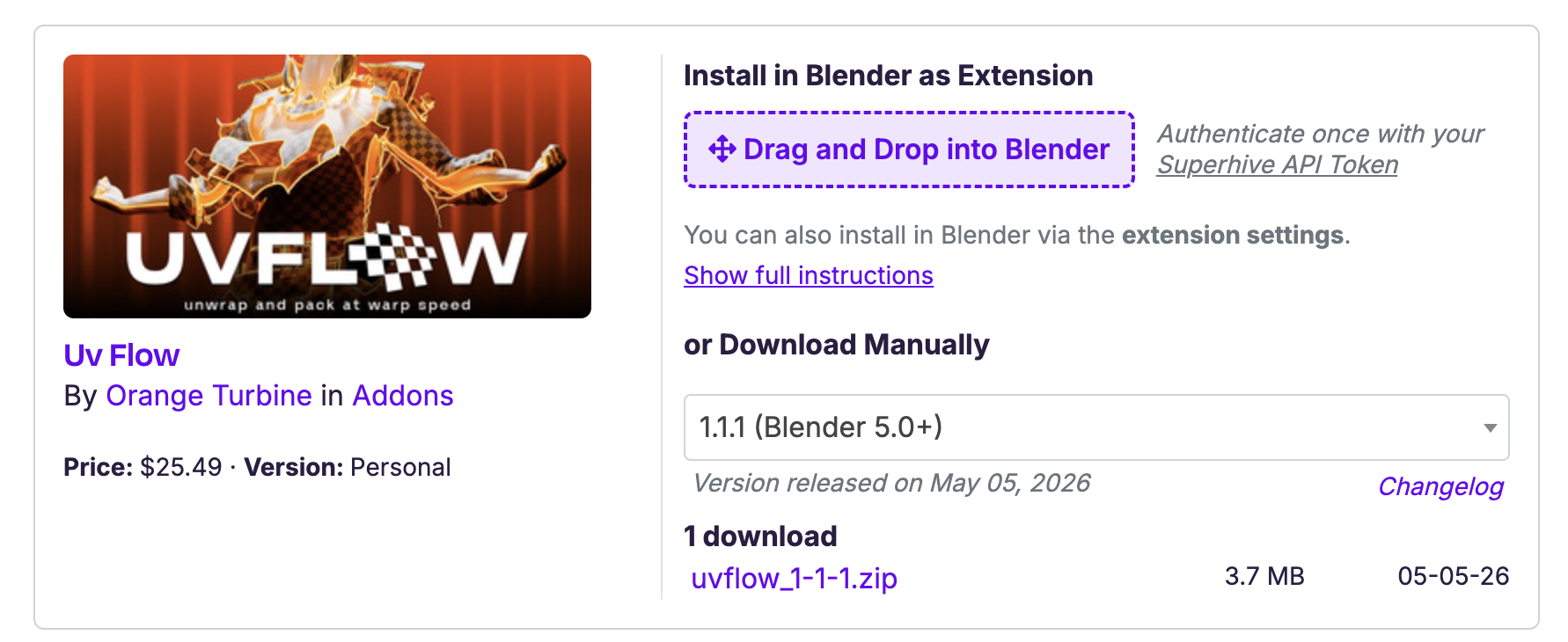
Once Superhive is configured as a remote repository in Blender, all purchased extensions will be revealed within Blender along with the option to one-click install and also to update when new versions become available.