Connecting Blender to Superhive for Remote Asset Libraries
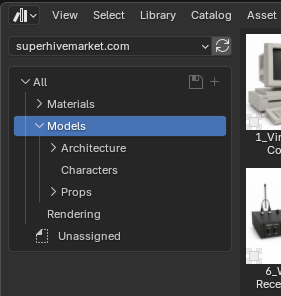
As a creator you can view any and all of your asset libraries on Superhive right within Blender without needing to purchase anything. All of your asset libraries are immediately available via Workstation URLs.
Workstation URLs
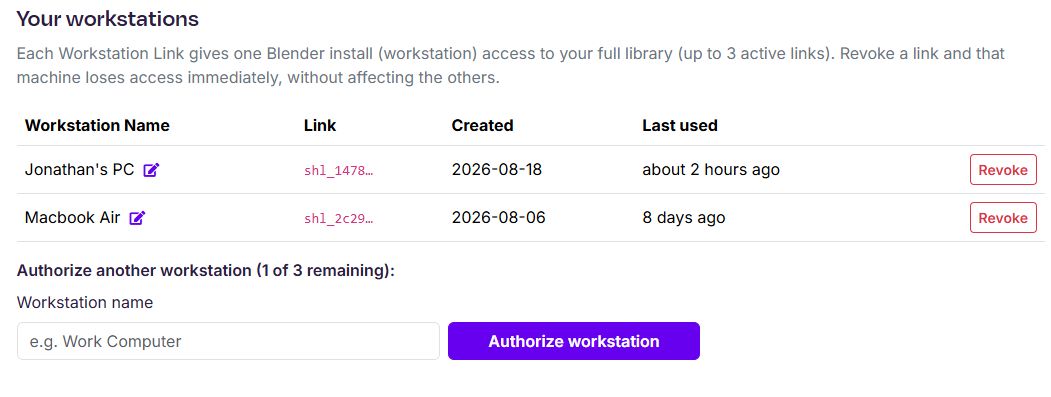
Each user on Superhive can authenticate up to three computers, workstations, in order to retrieve their asset libraries directly within Blender's asset browser.
Workstation URLs can be created (and revoked) at /account/assets. Each URL should get named and all asset requests will be logged against that URL. Under the hood we keep track of all asset requests per URL and automatically detect anomalies, such as over-sharing or other abuse.
 Connecting Blender
 Connecting Blender
After you've created a workstation URL you'll be prompted to copy the URL as it'll only be shown once. From there you can switch to Blender and navigate to the Preferences > Asset Libraries and add a new Remote Asset Library:
 On the next step simply paste the URL and click Create.
All of your entitled assets, those you've created and those you've purchased, will now stream into Blender's Asset Browser.