
Using the Affiliate Directory
The Affiliate Directory lists active Superhive affiliates and where they promote. You can use it to find affiliates who reach the right audience for your products and add them as your affiliates without needing their email address.
Where to find the Affiliate Directory
In your Creator Dashboard, open Affiliate Details and click the Affiliate Directory button at the top right, next to New Affiliate.
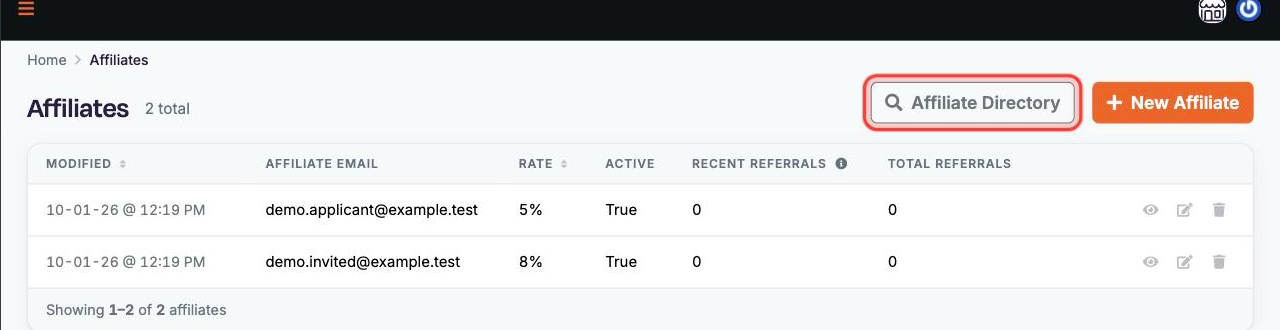
You can also get there from the New Affiliate form. If you don't know someone's email, follow the link to browse the affiliate directory and add them from there.
What's in the directory
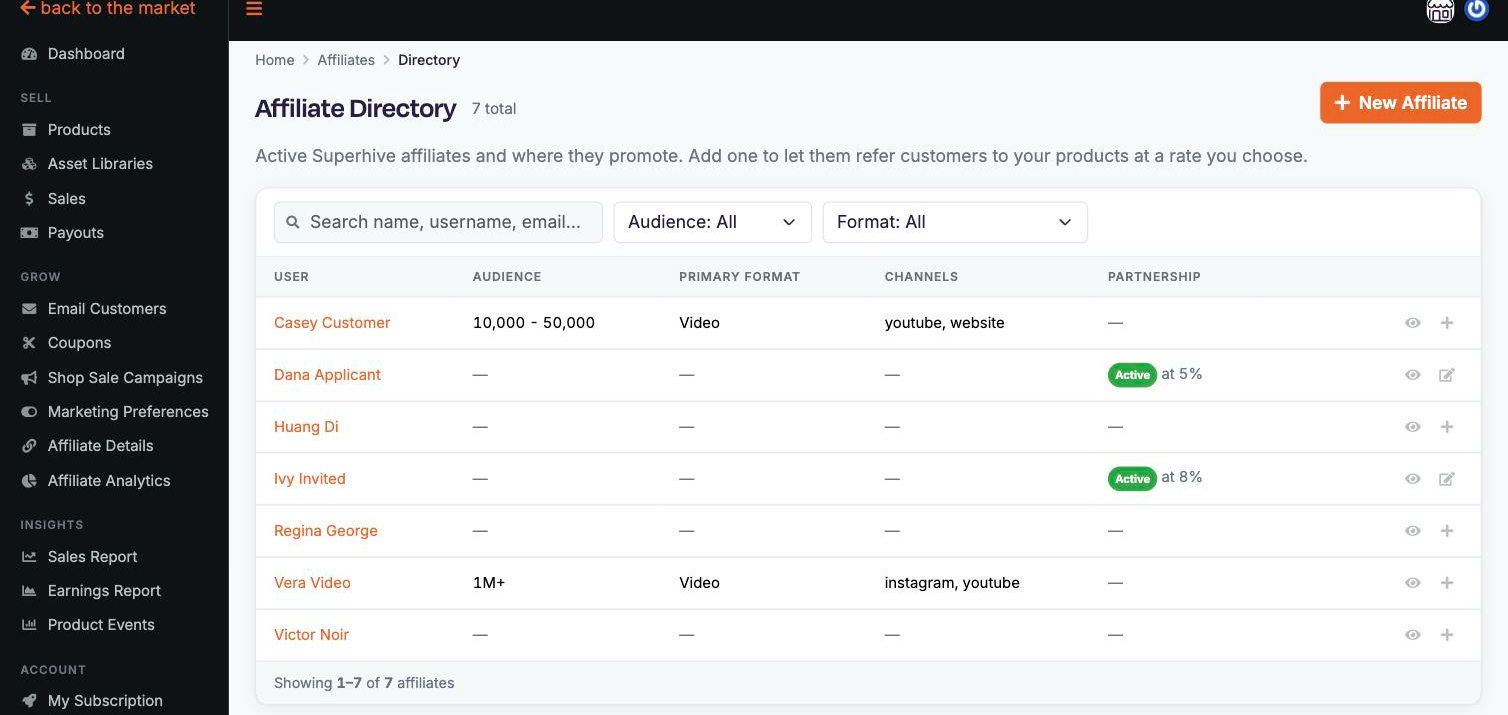
By default, the directory shows only affiliates who have completed their profiles, meaning they've added an audience size, a primary content format, and at least one channel link. That keeps the focus on active affiliates who are looking to partner with Creators. To see every affiliate, unfiltered, choose View All.
Each row is one affiliate. The columns are:
- User: the affiliate's display name. Click it to open their profile.
- Audience: their estimated combined audience size across all their channels, from "Less than 1,000" up to "1M+".
- Primary Format: the main type of content they publish: Video, Text (blog, articles, docs), Audio (podcast), or Other.
- Channels: the platforms where they promote, such as YouTube, Instagram, or a website.
- Partnership: whether you already work with this affiliate. If you do, you'll see an Active or Inactive badge and their rate (for example, "at 5%"). If you don't, you'll see a dash (—).
In View All, you'll also see affiliates who haven't completed their profiles. A dash in the Audience, Primary Format, or Channels column means the affiliate hasn't filled in that part of their profile yet.
Searching and filtering
- Use the search box to find someone by name or username.
- Use the Audience filter to show affiliates in a particular audience-size range.
- Use the Format filter to show affiliates by their primary content format (Video, Text, Audio or Other).
Viewing an affiliate's profile
Click an affiliate's name or the eye icon in their row to open their profile. At the top you'll see:
- Name
- Affiliate Since: when they became a Superhive affiliate.
- Your Partnership: "Not yet working together," or your current status and rate with a link to view the details.
Below that, their profile shows:
- Where They Promote: links to their channels and their estimated audience size.
- Content: their primary content format, any secondary formats, and the languages they publish in.
- What They Promote: the product types they usually promote (for example, Models, Addons, or Training) and their topical focus.
Visit their channels to get a feel for their work and their audience before you decide. For tips on what to look for, see How to Evaluate an Affiliate Proposal.
If a profile is empty
If a profile says "This affiliate hasn't shared their channels, audience size or content details yet," the affiliate hasn't set up their profile. You'll usually only come across these in View All. This is common for longtime affiliates who joined before profiles existed. It doesn't mean they aren't a good fit. If you recognize them, you can still add them. Or you can reach out through your usual channels to learn more about where they promote. Affiliates can fill in their profile at any time (see Your Affiliate Profile).
Adding an affiliate from the directory
- Click Add as Affiliate on the affiliate's profile, or click the + icon in their row in the directory.
- The New Affiliate form opens with the affiliate already filled in, marked "from directory." You won't need or see their email address. Use View profile to check their profile again, or Change to pick someone else.
- Set their percentage and choose which products they can earn from, just as you would for any new affiliate.
- Click Create Affiliate.
The partnership starts as soon as you save. The affiliate doesn't need to accept an invitation. Afterward, their row in the directory shows an Active badge and the rate you set in the Partnership column, and they also appear on your Affiliates page.
If you already work with an affiliate
If an affiliate is already one of yours, you'll see Edit Partnership (or the edit icon in their row) instead of Add as Affiliate. Use it to change their rate, products, or active status. See How to Manage Existing Affiliates.
Who appears in the directory
Every active Superhive affiliate is in the directory. That includes affiliates who applied through the Superhive Affiliate Program and were approved, as well as affiliates who were added by a creator, including longtime affiliates from before the directory existed.
The default view shows only those who have completed their profiles. Every Creator is also an affiliate, and Creators far outnumber dedicated affiliates, so the default view keeps the list focused on active affiliates who want to connect. Other Creators, and affiliates who haven't filled in their profiles yet, appear when you choose View All.
People whose applications are still being reviewed, or weren't approved, don't appear in the directory.