
Creator Sale Campaigns
As a creator on Superhive, you now have the power to run your own sale campaigns! This gives you complete control over when and how you discount your products, helping you attract more customers and boost sales on your own schedule.
When to Create a Sale Campaign
Running a sale can help you achieve different business goals. Here are some occasions when creators typically launch sale campaigns:
🎉 Seasonal promotions – Align with holidays, back-to-school, or seasonal shopping trends to capture buyer interest when spending is high.
🚀 Product launches – Offer introductory discounts on new products to generate buzz and encourage early adopters.
💝 Customer appreciation – Thank your loyal customers with special pricing during anniversaries, milestones, or just because.
📈 Traffic boosts – Drive visibility during slower periods by making your products more attractive to price-conscious shoppers.
🎯 Strategic positioning – Stay competitive when similar products are on sale, or test different price points to find your sweet spot.
How to Create a Sale Campaign
Step 1: Navigate to Sale Campaigns
From your creator dashboard, go to Sale Campaigns → Shop Sale Campaigns then click on the ➕New Sale Campaign button.
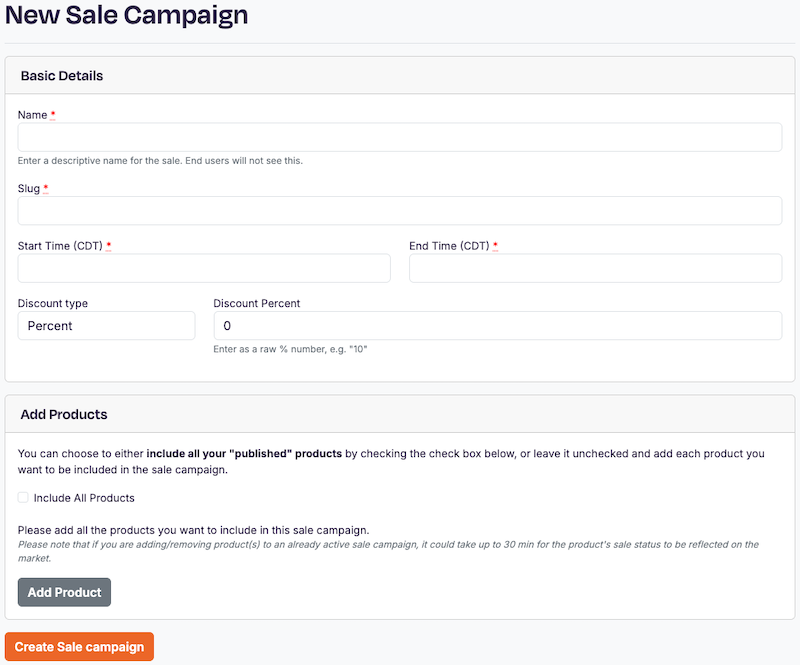
Step 2: Enter Basic Details
Name (Required)
Choose a descriptive internal name for your sale (e.g., "Summer Sale 2025" or "New Product Launch Discount"). This name is only visible to you and helps you organize multiple campaigns. Customers won't see this name on the marketplace, but it will be used to generate and automatic slug.
Slug (Required)
The slug will be added to the end of the url that links to your sale campaign. A slug is is automatically generated using your sale name. You can choose to edit that slug. Enter a URL-friendly identifier for your sale. This can be used to filter the product catalog to only your sale items on the Products page by setting the sale_campaign URL attribute equal to your campaign's slug. For example https://superhivemarket.com/products?sale_campaign=holiday-sale-2025
Start Time (Required)
Select when you want your sale to begin. All times are in Central Daylight Time (CDT). Your discounted prices will automatically go live at this time. If you would like your sale to go live now, you can set the start date to yesterday. This will allow your sale to begin on the next reindex of the site. This can take up to 30 minutes for your sale to launch. If your sale is not active after 30 minutes, contact [email protected].
End Time (Required)
Select when your sale should end. Your products will automatically return to regular pricing after this time.
Discount Type
You can choose between both a fixed dollar amount and percentage-based discounts.
Discount Percent / Discount Flat Rate
Enter the percentage or fixed discount you want to offer. Fixed dollar amounts should be entered in cents (e.g. $1 should be entered as 100). Percentages should be entered only as the denomination. (e.g., enter "15" for 15% off). Don't include the "%" symbol—just the number.
Step 3: Select Your Products
You have two ways to choose which products go on sale:
Option A: Include All Published Products
Check the "Include All Products" box to automatically apply the discount to every product you currently have published on the marketplace. This is perfect for store-wide sales.
Option B: Select Specific Products
Leave the box unchecked and click "Add Product" to individually select which products should be included in the sale. This gives you precise control—ideal when you want to discount certain product lines, categories, or price points.
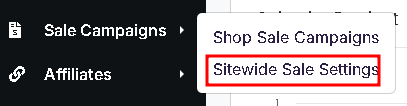
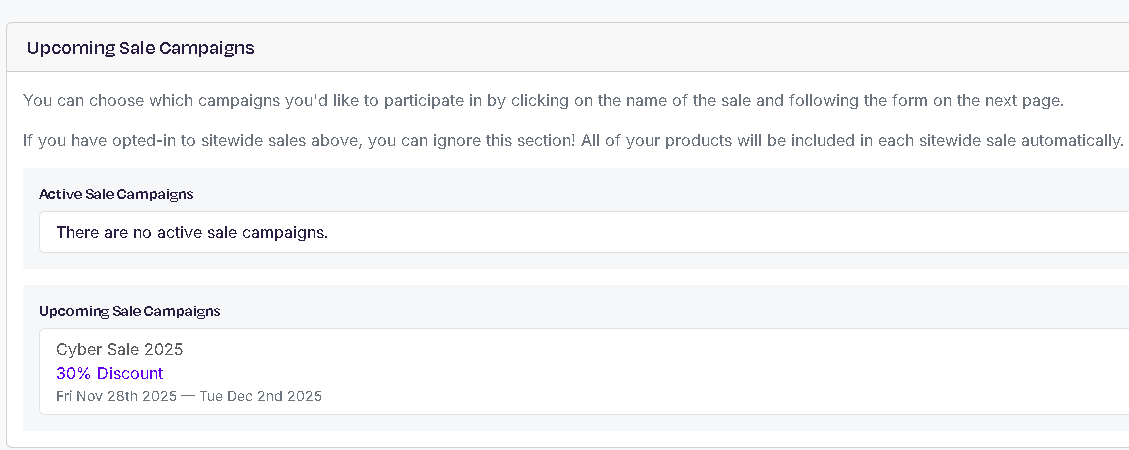
How do I know if there is an active or upcoming sitewide sale?
In the sidebar menu from the creator dashboard you can visit
'Sale Campaigns' and then 'Sitewide Sale Settings'. https://superhivemarket.com/creator/sitewide_settings
⚠️ Important: Only your published products are eligible for sale campaigns. Draft or unpublished products won't be included.
Step 4: Create Your Campaign
Once you've entered all the details and selected your products, click the orange "Create Sale campaign" button at the bottom of the page.
Best Practices for Successful Sales
✅ Be strategic with timing – Coordinate sales with high-traffic periods or shopping events
✅ Don't over-discount – Find the balance between attractive pricing and maintaining your profit margins
✅ Consider product selection carefully – You don't always need to put everything on sale
✅ Monitor performance – Track which products sell well during sales to inform future campaigns
✅ Communicate with customers – Let your audience know about your sales through your usual channels
✅ Timing part deux – It is recommended that the start and end date of your sales not to be within a day of a sitewide sale. E.g. your sale could end on a Tuesday, the sitewide sale could go from Wednesday - Friday, and then your next sale could start Saturday.
F.A.Q.
- Why can't I see my product to add to a sale?
- You are only able to search your products that are published. Any product that is disabled, in draft, or unpublished will not be able to be added.
- Why isn't my sale active? My sale should be active, but I am seeing a red x under its status instead.
- Check for any active site-wide sales. If the active site-wide sale dates overlap your sale campaign, your campaign will be deactivated.